Build Connected Image and Video Workflowson One AI Canvas
Turn prompts, reference images, videos, and generated results into a connected visual workflow. Compare directions, preserve context, and iterate without losing your creative thread.
Text · Image · Video · Visual Workflows
See an AI Canvas Workflow in Action
Start with a source video, connect prompts and visual references, then see how Fylia AI Canvas keeps every input and generated result together.
Build Image and Video Workflows on AI Canvas
Fylia AI Canvas gives every idea room to develop. Connect prompts, references, generated images, and video clips in a node-based creative workflow you can see and refine.
Plan Ideas on a Visual AI Canvas
Add text nodes for prompts and story beats, then arrange reference images into a clear moodboard or storyboard. Group related assets by scene, subject, or creative direction.
Connect Image and Video Inputs
Link prompts and supported media to generation nodes. Keep every source visible as you choose a model and turn an image, video, or text idea into the next creative step.
Generate and Compare Visual Variations
Create image and video variations directly in your workflow. Place alternate compositions and motion studies side by side, then compare results without losing the original direction.
Iterate Without Breaking the Workflow
Adjust a node's prompt, references, or supported settings, then generate another result. Keep earlier versions on the AI Canvas so every change stays easy to review.
Why Creators Use Fylia AI Canvas
A strong image or video is only one part of a creative workflow. Fylia AI Canvas keeps its prompt, references, purpose, and alternatives connected for easier decisions.
See the Entire Workflow at Once
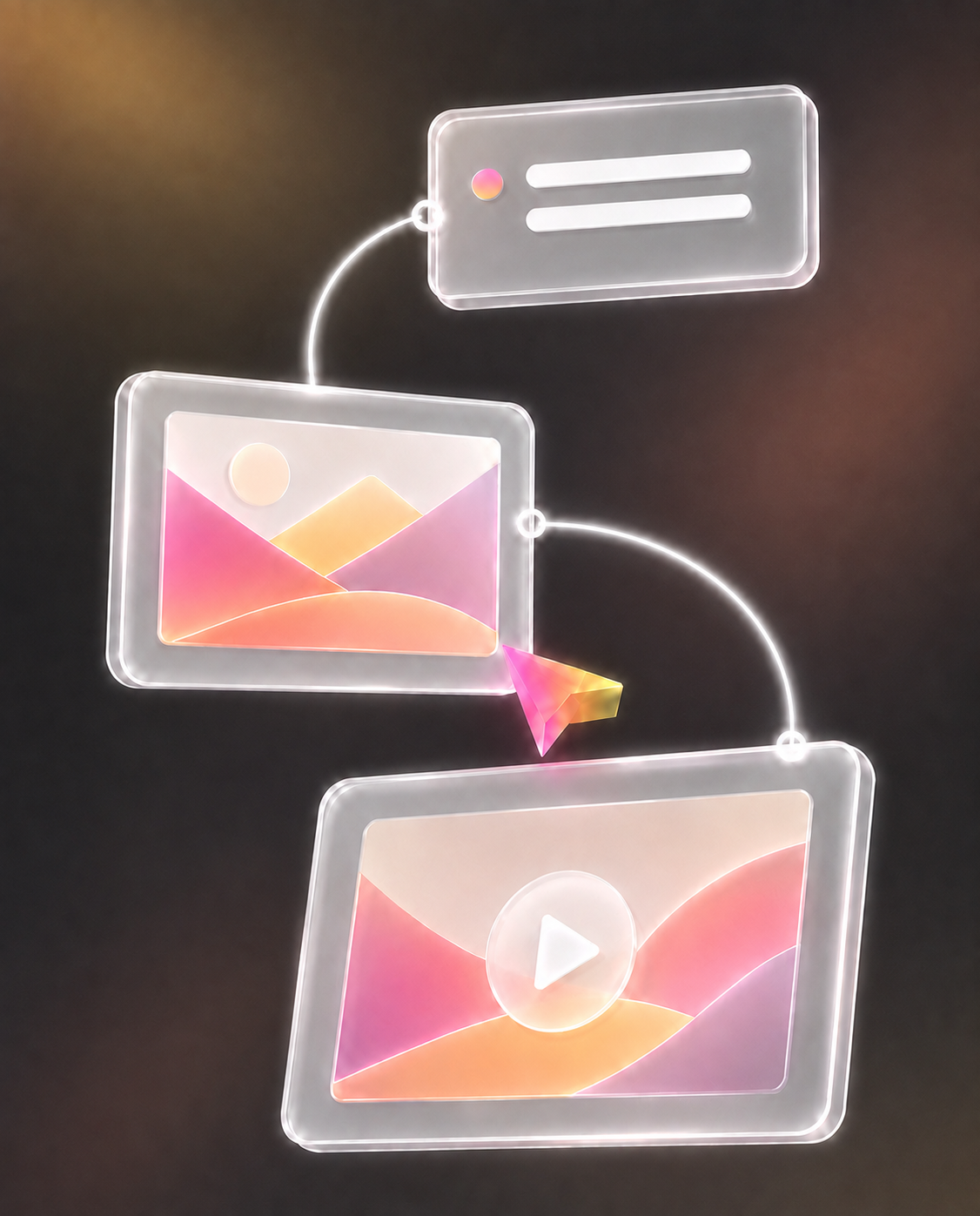
Review prompts, references, image results, and video shots in one visual workspace. Understand how each node contributes before choosing what to develop next.
Explore More Creative Directions
Branch into a different opening, style, palette, or composition without clearing the board. The infinite AI Canvas leaves room for promising ideas beyond the first plan.
Reuse Connected Creative Context
Carry a useful reference connection or generation configuration into the next variation. Build on earlier image and video work while the original creative choices remain visible.
Return to a Complete AI Canvas Project
Reopen a saved canvas with its notes, media, and node connections. The project layout preserves the workflow behind your outputs, not just a folder of separate files.
AI Canvas Workflows for Every Visual Project
Use Fylia AI Canvas to develop image concepts, video storyboards, brand campaigns, and visual narratives in one connected creative workspace.
AI Image Moodboards and Art Direction
Bring together lighting references, textures, subjects, and generated images. Compare possible looks for an illustration, editorial concept, campaign, or visual world.
AI Video Storyboards and Scene Planning
Place story beats beside keyframes and generated video clips. Use the AI Canvas to compare openings, scene relationships, camera ideas, and character looks across the workflow.
Product and Brand Content Workflows
Start with product images and a creative brief. Connect visual references, compositions, and motion ideas while keeping the brand direction visible from input to output.
Music Video and Narrative Concepts
Organize audio references, scene notes, images, and motion studies around a mood or story beat. Build a visual workflow for a music video or atmospheric sequence.
How to Build Your First AI Canvas Workflow
Start with one idea and a few references. The Fylia AI Canvas guide explains how to add nodes, connect inputs, generate image or video results, and use the editor controls.
1. Sign in, open My Canvases, and create a new AI Canvas project
2. Add text, image, or video nodes and connect them into a visual workflow
3. Choose an available model, generate results, and confirm the canvas is saved